> ## Documentation Index
> Fetch the complete documentation index at: https://wb-21fd5541-docs-2626.mintlify.site/llms.txt
> Use this file to discover all available pages before exploring further.
# Annotate collections
> Add descriptions and documentation to W&B Registry collections to help users understand their purpose and contents.
Add human-friendly text to your collections to help users understand the purpose of the collection and the artifacts it contains.
 Depending on the collection, you might want to include information about the training data, model architecture, task, license, references, and deployment. The following lists some topics worth documenting in a collection:
W\&B recommends including at minimum these details:
* **Summary**: The purpose of the collection. The machine learning framework used for the machine learning experiment.
* **License**: The legal terms and permissions associated with the use of the machine learning model. It helps model users understand the legal framework under which they can utilize the model. Common licenses include Apache 2.0, MIT, and GPL.
* **References**: Citations or references to relevant research papers, datasets, or external resources.
If your collection contains training data, consider including these additional details:
* **Training data**: Describe the training data used
* **Processing**: Processing done on the training data set.
* **Data storage**: Where is that data stored and how to access it.
If your collection contains a machine learning model, consider including these additional details:
* **Architecture**: Information about the model architecture, layers, and any specific design choices.
* **Task**: The specific type of task or problem that the collection's model is designed to perform. It's a categorization of the model's intended capability.
* **Deserialize the model**: Provide information on how someone on your team can load the model into memory.
* **Deployment**: Details on how and where the model is deployed and guidance on how the model is integrated into other enterprise systems, such as workflow orchestration platforms.
* **Compare metrics**: Compare metrics across different versions of artifacts linked to the collection. This helps users understand how the model has evolved over time and how different versions perform on specific tasks.
## Add a description to a collection
Interactively or programmatically add a description to a collection with the W\&B Registry UI or Python SDK.
1. Navigate to the [W\&B Registry](https://wandb.ai/registry/).
2. Click on a collection.
3. Select **View details** next to the name of the collection.
4. Select the **Collection card** tab.
5. Click the **Edit card** button.
6. Within the collection card editor, add a description to the collection. You can use Markdown formatting to style your text.
Format text with [Markdown markup language](https://www.markdownguide.org/). Use the forward slash (`/`) for a dropdown list of available Markdown formatting options.
Use the [`wandb.Api().artifact_collection()`](/models/ref/python/public-api/api#artifact_collection) method to access a collection's description. Use the returned object's `description` property to add, or update, a description to the collection.
Specify the collection's type for the `type_name` parameter and the collection's full name for the `name` parameter. A collection's name consists of the prefix “wandb-registry”, the name of the registry, and the name of the collection separated by forward slashes:
```text theme={null}
wandb-registry-{REGISTRY_NAME}/{COLLECTION_NAME}
```
Copy and paste the following code snippet into your Python script or notebook. Replace values enclosed in angle brackets (`<>`) with your own.
```python theme={null}
import wandb
api = wandb.Api()
collection = api.artifact_collection(
type_name = "",
name = ""
)
collection.description = "This is a description."
collection.save()
```
## Compare metrics across artifact versions
Within the collection card editor, you can compare metrics across different versions of artifacts linked to the collection.
1. Within the collection card editor, type a forward slash (`/`) to open a dropdown list of available Markdown formatting options.
2. Select **Compare metrics** to add a metrics comparison table to the collection card.
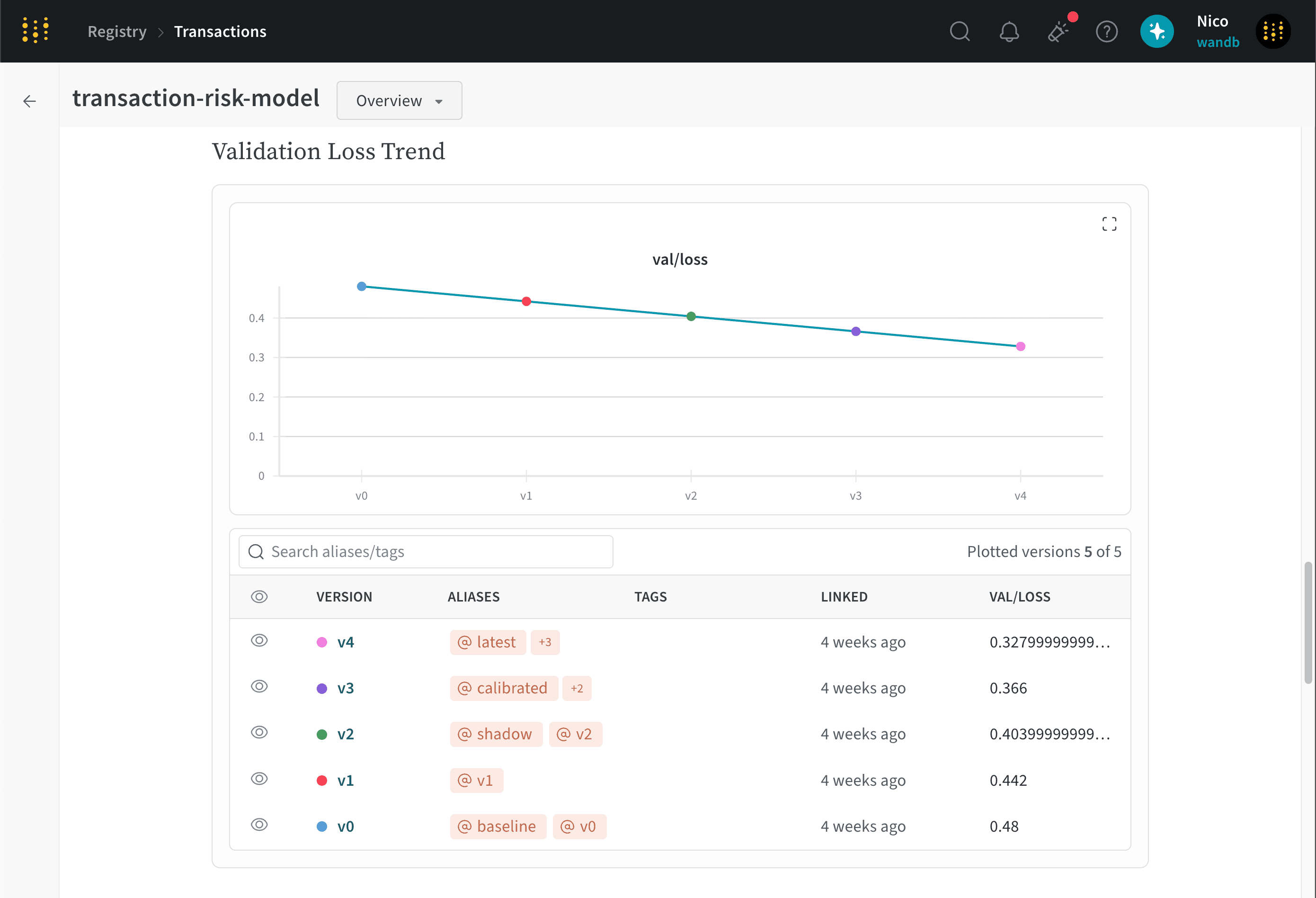
The following image shows `val/loss` across 5 different artifact versions linked to the `transaction-risk-model` collection.
Depending on the collection, you might want to include information about the training data, model architecture, task, license, references, and deployment. The following lists some topics worth documenting in a collection:
W\&B recommends including at minimum these details:
* **Summary**: The purpose of the collection. The machine learning framework used for the machine learning experiment.
* **License**: The legal terms and permissions associated with the use of the machine learning model. It helps model users understand the legal framework under which they can utilize the model. Common licenses include Apache 2.0, MIT, and GPL.
* **References**: Citations or references to relevant research papers, datasets, or external resources.
If your collection contains training data, consider including these additional details:
* **Training data**: Describe the training data used
* **Processing**: Processing done on the training data set.
* **Data storage**: Where is that data stored and how to access it.
If your collection contains a machine learning model, consider including these additional details:
* **Architecture**: Information about the model architecture, layers, and any specific design choices.
* **Task**: The specific type of task or problem that the collection's model is designed to perform. It's a categorization of the model's intended capability.
* **Deserialize the model**: Provide information on how someone on your team can load the model into memory.
* **Deployment**: Details on how and where the model is deployed and guidance on how the model is integrated into other enterprise systems, such as workflow orchestration platforms.
* **Compare metrics**: Compare metrics across different versions of artifacts linked to the collection. This helps users understand how the model has evolved over time and how different versions perform on specific tasks.
## Add a description to a collection
Interactively or programmatically add a description to a collection with the W\&B Registry UI or Python SDK.
1. Navigate to the [W\&B Registry](https://wandb.ai/registry/).
2. Click on a collection.
3. Select **View details** next to the name of the collection.
4. Select the **Collection card** tab.
5. Click the **Edit card** button.
6. Within the collection card editor, add a description to the collection. You can use Markdown formatting to style your text.
Format text with [Markdown markup language](https://www.markdownguide.org/). Use the forward slash (`/`) for a dropdown list of available Markdown formatting options.
Use the [`wandb.Api().artifact_collection()`](/models/ref/python/public-api/api#artifact_collection) method to access a collection's description. Use the returned object's `description` property to add, or update, a description to the collection.
Specify the collection's type for the `type_name` parameter and the collection's full name for the `name` parameter. A collection's name consists of the prefix “wandb-registry”, the name of the registry, and the name of the collection separated by forward slashes:
```text theme={null}
wandb-registry-{REGISTRY_NAME}/{COLLECTION_NAME}
```
Copy and paste the following code snippet into your Python script or notebook. Replace values enclosed in angle brackets (`<>`) with your own.
```python theme={null}
import wandb
api = wandb.Api()
collection = api.artifact_collection(
type_name = "",
name = ""
)
collection.description = "This is a description."
collection.save()
```
## Compare metrics across artifact versions
Within the collection card editor, you can compare metrics across different versions of artifacts linked to the collection.
1. Within the collection card editor, type a forward slash (`/`) to open a dropdown list of available Markdown formatting options.
2. Select **Compare metrics** to add a metrics comparison table to the collection card.
The following image shows `val/loss` across 5 different artifact versions linked to the `transaction-risk-model` collection.